 Top up cowries
Guides/In the app
Set up your public profile
Add photo, bio, and username so people can find you at iholda.com/@you.
- 1. Open Profile → EditTap your avatar, then Edit profile. Changes sync to your public web page.
- 2. Choose a unique @usernamePick something friends can spell — first name + city often works. Usernames appear in iholda.com/@username links.
- 3. Write a local bioOne or two lines: where you meet, what you post, optional creator note. Skip empty hype.
- 4. Upload a recognizable photoFace or brand logo for shops — avoid blurry group shots as main avatar.
- 5. Preview your public linkCopy profile link and open in a browser to confirm photo and bio render correctly.
Steps at a glance
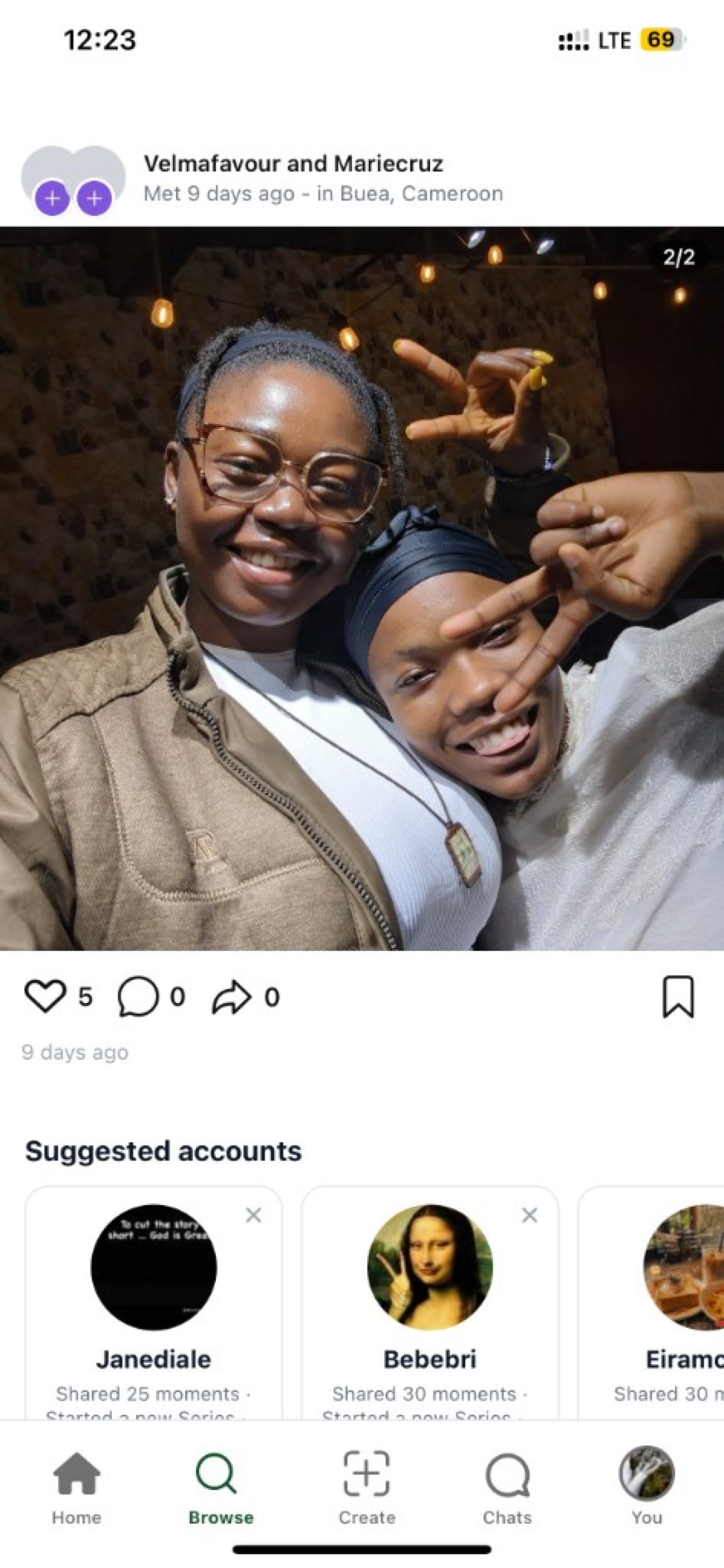
Add photo, bio, and username so people can find you at iholda.com/@you.
Screenshots below match the current iHolda consumer app. Merchants use Cartpo for register and catalog; you do not need Cartpo to complete this flow.
Walkthrough
Open Profile → Edit
Tap your avatar, then Edit profile. Changes sync to your public web page.
After open profile → edit, pause and confirm on-screen names, counts, and amounts match what you discussed in chat. Buea and campus circles often coordinate pickup at a familiar gate right after this step.
If the button is disabled, check connectivity or update the app — live, checkout, and invite flows need a current build from the store.
Choose a unique @username
Pick something friends can spell — first name + city often works. Usernames appear in iholda.com/@username links.
After choose a unique @username, pause and confirm on-screen names, counts, and amounts match what you discussed in chat. Buea and campus circles often coordinate pickup at a familiar gate right after this step.
If the button is disabled, check connectivity or update the app — live, checkout, and invite flows need a current build from the store.
Write a local bio
One or two lines: where you meet, what you post, optional creator note. Skip empty hype.
After write a local bio, pause and confirm on-screen names, counts, and amounts match what you discussed in chat. Buea and campus circles often coordinate pickup at a familiar gate right after this step.
If the button is disabled, check connectivity or update the app — live, checkout, and invite flows need a current build from the store.
Upload a recognizable photo
Face or brand logo for shops — avoid blurry group shots as main avatar.
After upload a recognizable photo, pause and confirm on-screen names, counts, and amounts match what you discussed in chat. Buea and campus circles often coordinate pickup at a familiar gate right after this step.
If the button is disabled, check connectivity or update the app — live, checkout, and invite flows need a current build from the store.
Preview your public link
Copy profile link and open in a browser to confirm photo and bio render correctly.
After preview your public link, pause and confirm on-screen names, counts, and amounts match what you discussed in chat. Buea and campus circles often coordinate pickup at a familiar gate right after this step.
If the button is disabled, check connectivity or update the app — live, checkout, and invite flows need a current build from the store.
Help: FAQ index
After you finish
Log out and back in once if balances or invites look stale — sync can lag a minute after web checkout or large squad updates.
Share what worked with one friend in Buea or campus chat; friend-led discovery beats guessing from empty feeds.
Related help lives in the FAQ hub and blog cluster pages — search your exact symptom before you retry a payment or invite.